How the Playbypoint integration works
Our Playbypoint integration brings your Playbypoint programs (clinics, leagues and round robins) into Good Game Sports with their dates and enrolled players, so you can run them here. It only reads from Playbypoint and never changes anything there. You create an API key in Playbypoint, and our team connects it for you.
Before we connect your club
You need to be an organization admin in Playbypoint to create the API key.
In the Playbypoint dashboard, open Developers > API keys.
Create a key for your club's facility with read access to Programs, Program enrollments and Customers.
Copy the key. It starts with pbp_, and Playbypoint shows it only once.
Email us at [email protected] and we'll connect it with you.
A key missing one of the three permissions is refused. If the key covers more than one facility, we pick the one that is your club.
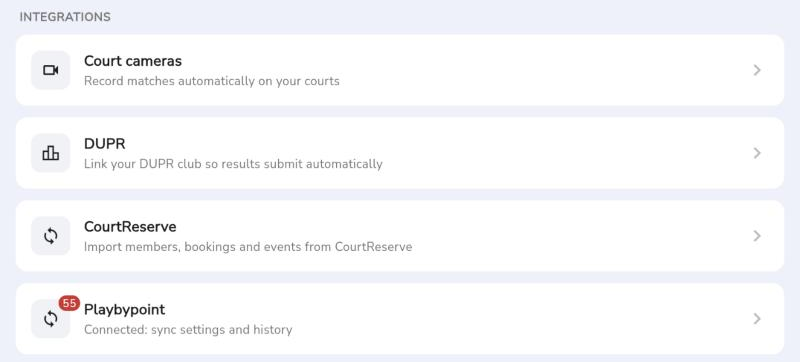
Once connected, open Playbypoint Programs from your club page's Settings > Integrations > Playbypoint. Clubs without a Settings tab find a Playbypoint tile in the club owner's admin tools. The badge on either counts programs with dates coming up that aren't on Good Game Sports yet.
What comes across
Programs with sessions in the next 100 days. Each one becomes a league or a series of single day events, whichever you choose when you create it.
Enrolled players: name, email and phone.
Court reservations, payments and your customer list don't come across. Players keep enrolling in Playbypoint, and their enrollments sync into the event. Leagues that aren't set up as programs in Playbypoint can't be brought in.
Create a GGS event from a program
Programs not on Good Game Sports yet are listed under Unpublished on the Playbypoint Programs page; once you create an event they move to Published. Use the search box or the category filter to find a program.
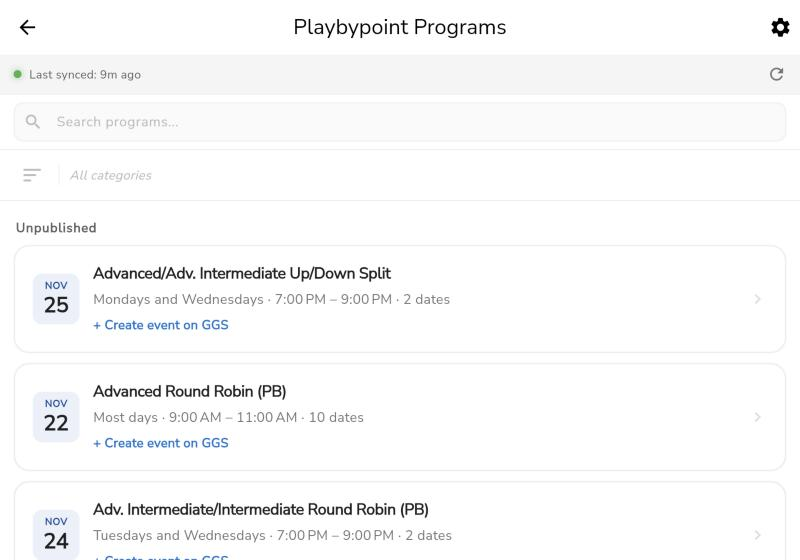
Tap the program under Unpublished.
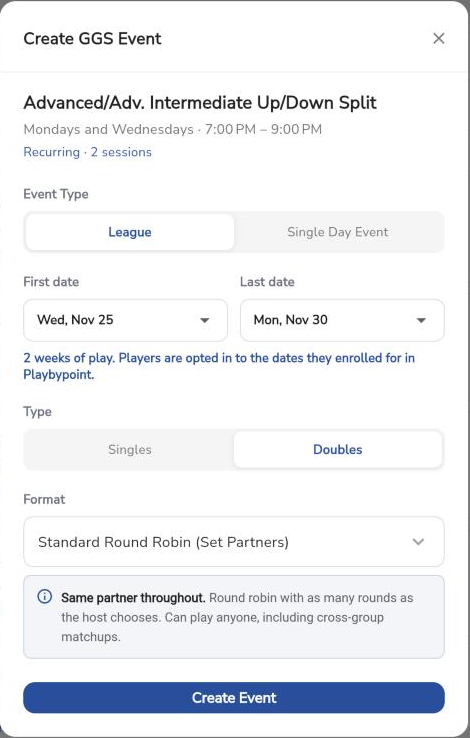
Under Event Type, choose League or Single Day Event.
For a league, choose the First date and Last date. It starts as the next 8 weeks of sessions that aren't already in a league.
Choose Singles or Doubles and the Format.
Tap Create Event. For single day events, the button creates one event per upcoming date.
Players come over on the next sync. For single day events, new dates are added on their own when Playbypoint adds sessions. For a league, dates after its last date aren't included: when you're ready for them, tap + Add later dates on GGS on the program's card to create a new league over those dates.
A program keeps the event type it was first created as, so a player is never on two rosters for the same date.
How players stay in sync
We read your programs every 12 hours, and the players of events within the next 30 days every 12 hours. To sync now, pull down on the Playbypoint Programs page or tap its refresh icon, or tap the refresh icon (Sync from Playbypoint) on an event's Players tab.
In a league, a player is opted in to the dates they enrolled for in Playbypoint. In a single day event, everyone enrolled in that session comes across.
Sessions rained out or cancelled in Playbypoint don't count as dates.
A player who cancels in Playbypoint isn't removed. They're marked Removed from Playbypoint on your player list, and you decide whether to withdraw them.
Players you add by hand stay, marked as not synced from Playbypoint.
A player's opt-out is never overwritten by a sync.
A player on a package whose sessions Playbypoint hasn't given dates yet joins the league once those dates are set.
If something looks wrong
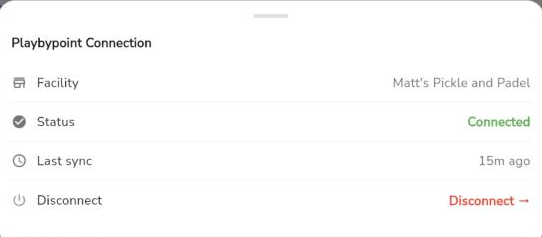
The bar at the top of the Playbypoint Programs page shows when you last synced, or what's wrong with the connection. The Manage Connection (gear) icon shows the facility, status and last sync.
Key rejected: Playbypoint no longer accepts the key, for example because it was deleted. Create a new key and contact us to reconnect.
Missing permissions: the key lost read access to one of Programs, Program enrollments or Customers. Add it back in Playbypoint, then sync.
Not responding: Playbypoint is down or slow. You still see programs from the last good sync. Pull down to try again later.
A program isn't listed: check it has a session in the next 100 days and the category filter isn't hiding it, then sync.
Disconnect Playbypoint
Disconnecting stops syncing and deletes your API key from Good Game Sports. Events you already created stay as they are, and connecting again goes through us.
On the Playbypoint Programs page, tap the Manage Connection icon.
Tap Disconnect, then confirm with Disconnect.